FOSS India Pune Meetup, 2025

- Posted in Club Frenzy by

I came back from Pune FOSS Meetup (monthly ones usually) today (my first ever). The monthly meetup was nice, interactive, and the room was filled (approx 40-45 of us were there) with youngsters beaming for new things, knowledge, and pretty shy as well. πŸͺ­πŸ˜³

Onkar, Sriya, Agastya, Prathamesh, Khushi (FOSSUnited) and Joshua (host/Technogise) were very supportive, open and made every one feel very welcomed. It was real nice to be there, got to know a lot.

What I really liked was that youngsters were filled with thoughts about what FOSS is all about? They were intently listening, even interacting, asking questions, and I saw few take notes. I am bad at remembering names (not faces though), so I am not sure I recall the names (anger management). Anyways, I heard one enthusiast take the name of Joplin, which peaked my height, as being India, and knowing how things go (to a certain extent of course), I liked it and started to pitch for the usage of F-Droid as well, which I was sad to see, hardly anyone knew.

Some knew of AuroraStore as well, and were using it daily. I was pitching more on take control and switch from closed source to open source. I spoke about some nightmares of my rooting experience of more than a decade & half back, which was like a WOAH for me too.

All working individuals were pitching Linux/Unix, which was so nice. I kept cringing about being a non-dev 😜, and liked how we had a good interactive session throughout.

What I found odd, and I have been vocal anyways: usage of google and proprietary stuff a lot by everyone. We need to move out of the GAFAM nonsense and take back our privacy, which I tried to pitch as much as possible. Drumming the R.E.M. Privacy is Scrooge McDuck saving his Lucky Coin from Cruella, Money from Maa Beagle & Beagle Boys.

Another thing I found odd, XMPP is missing from India & FOSS. Start using it too people. πŸ™‚

FYI: I host a lot of stuffs, and own my domain and what not. Start using them, and happy to have that traffic.. --> LibreQR | 4G Search | LibreY Search | PasteBin | Hosts

To wrap this post up...

There were refreshments for everyone and the best part for me; they kept it vegetarian. πŸ‘ŒπŸ‘Œ Overall, I enjoyed being there, and I hope they liked my butting too. 😎🫑


Keeping this small so as not to bore anyone wishing to read this. Unfortunately, I will not be able to attend the Bangalore one. Guess, I can do it next year.
Termux & Remote SSH

- Posted in Android by

Install Termux & Termux Styling

Upgrade packages & install openssh and iproute2 on termux.Also, install root packages & busybox package if you need them.

pkg update -y && pkg upgrade -y
pkg install openssh -y
pkg install iproute2 -y
pkg install root-repo -y
pkg install busybox termux-services -y

If you like, you can also add the following termux repositories:

echo "deb https://grimler.se/termux-packages-24 stable main" > $PREFIX/etc/apt/sources.list
echo "deb https://grimler.se/termux-packages-24 stable main" > $PREFIX/etc/apt/sources.list.d/game.list
echo "deb https://grimler.se/termux-packages-24 stable main" > $PREFIX/etc/apt/sources.list.d/science.list

Ensure to setup the storage and stuff beforehand. See here: Setup Storage

Create SSH Private/Public Key Pair on Android - Termux

In our android device, we need to generate SSH key pair for connecting to SSH server the remote machine (example debian). So, run the following command (this will also name the file as android for easy referencing):

ssh-keygen -t ed25519 -f id_ed25519_android

This will create the public & private key files in the ~/.ssh folder (/data/data/com.termux/files/homes/.ssh)

Send SSH Public Key to Remote Machine

Run cat ~/.ssh/id_ed25519_android.pub from termux which will return the public key for your android device.

It will be something like this:

ssh-ed25519 ABCDE1AaaA1aAAA1AAA1AAAAAAAAAaaaA1AaaAaaaAaaa1aAAAAaaAAAAaAaaaAAaaAA user@host

Now copy and paste this key to your remote machine either via the chat box option in the file transfer assistant app PlainApp or copying the id_ed25519_android.pub file across to your remote machine and then copy the content to ~/.ssh/authorized_keys file ($HOME/.ssh/authorized_keys).

Now kill any running sshd service by typing in termux: pkill -9 sshd. This is to let go of any cache or broken service pipes.

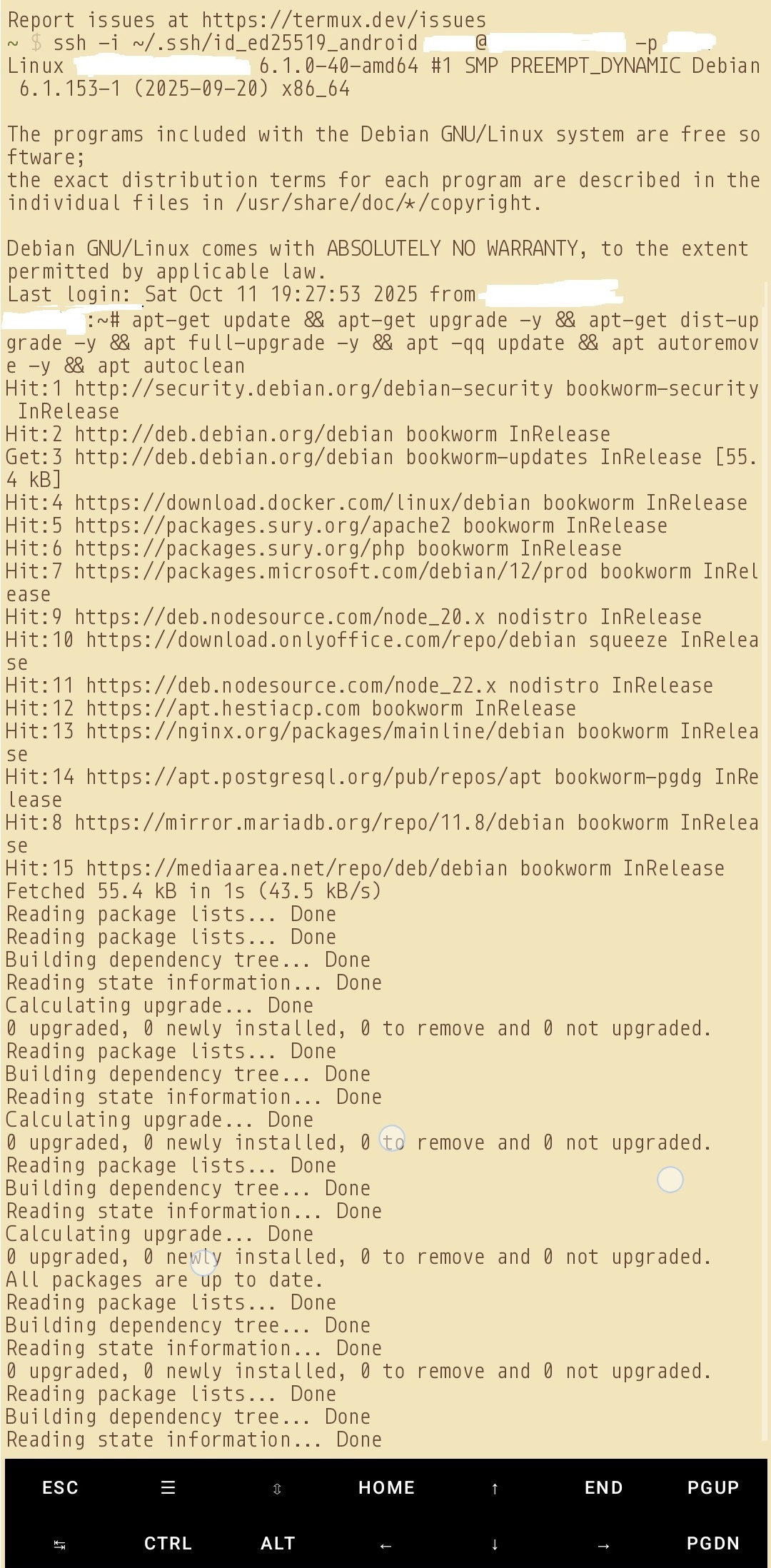
Now rerun sshd and connect to your remote server using the private key as pairing for the public key, via:

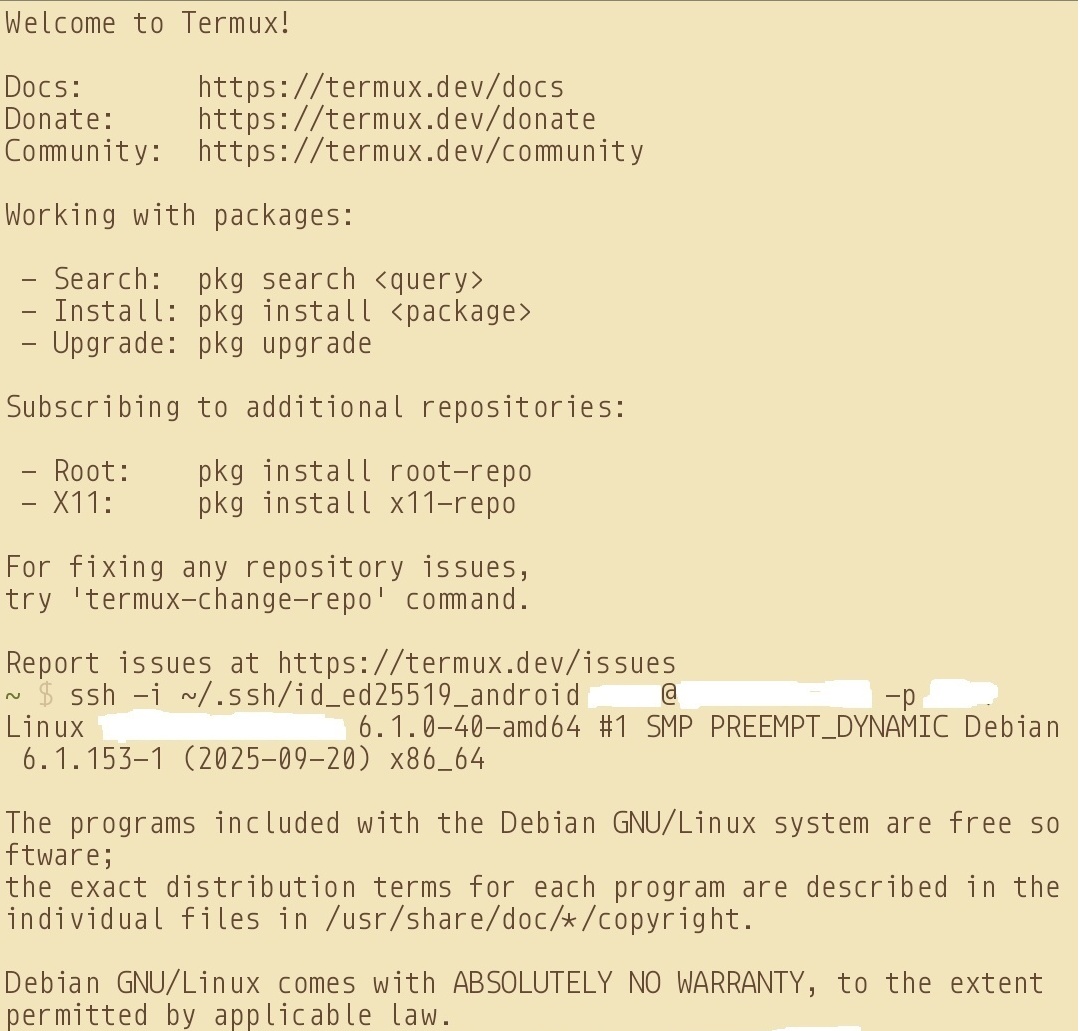
ssh -i ~/.ssh/id_ed25519_android user@host -p 1234


Sources & my own racking of 5 days:

Termux Wiki | Termux Repos | Some Logic


Sample images:

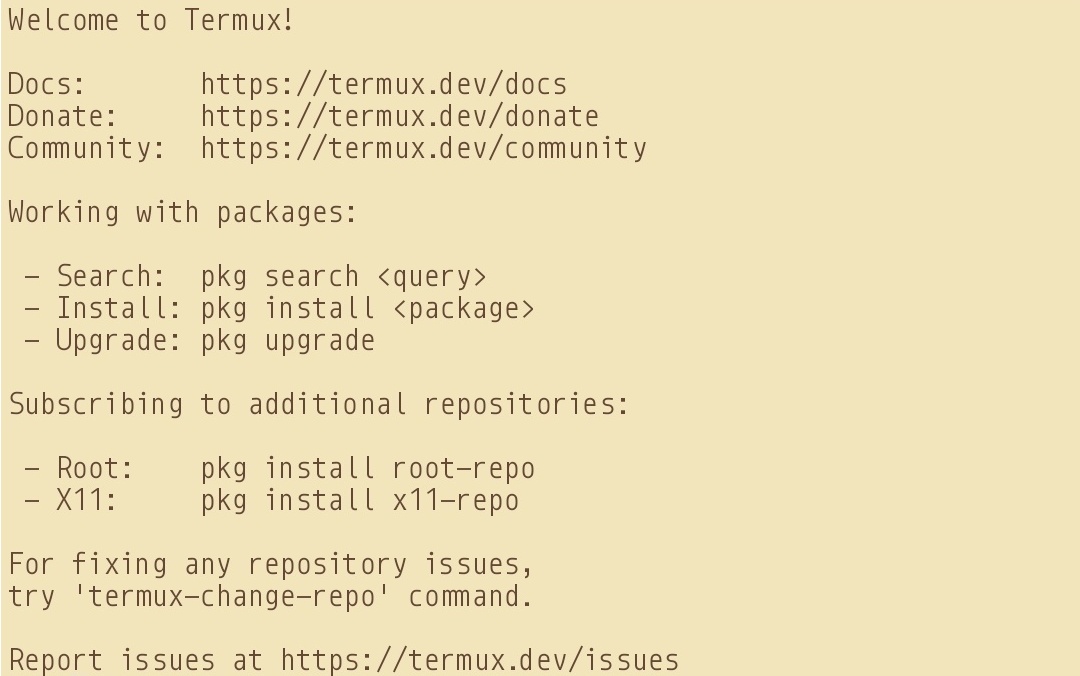
  • Main Screen

Termux Main Window

  • SSH Connected

SSH Connected

  • Sample Commands

Commands being run

Rewrite Engine (Messy)

- Posted in Guides by

Anyways.. To redirect a website, say example.co.uk to say example.co.uk/file.php

RewriteEngine on RewriteCond %{HTTP_HOST} ^example\.co\.uk$
[OR] RewriteCond %{HTTP_HOST} ^www\.example\.co\.uk$
RewriteRule ^/?$ "https\:\/\/example\.co\.uk\/file.php"
[R=301,L]

To rewrite PHP files

RewriteEngine On
RewriteCond %{REQUEST_FILENAME} !-d
RewriteCond %{REQUEST_FILENAME} !-f
RewriteRule ^([^.]+)/?$ $1.php [NC,L]
RewriteCond %{THE_REQUEST} /([^.]+)\.php [NC]
RewriteRule ^ /%1 [NC,L,R]
RewriteCond %{REQUEST_FILENAME}.php -f
RewriteRule ^ %{REQUEST_URI}.php [NC,L]

To rewrite HTML files

RewriteEngine On
RewriteCond %{REQUEST_FILENAME} !-f
RewriteRule ^([^.]+)$ $1.html [NC,L]
RewriteEngine on
RewriteCond %{THE_REQUEST} /([^.]+)\.html [NC]
RewriteRule ^ /%1 [NC,L,R]
RewriteCond %{REQUEST_FILENAME}.html -f
RewriteRule ^ %{REQUEST_URI}.html [NC,L]

To ensure access is limited and not exposed

<Files 403.shtml>
order allow,deny
allow from all
</Files>

RSS-Bridge - Installation

- Posted in Guides by

Even though they have their guides, it somehow never works for me (possible as I am using a master user)

I will just describe the steps here for traditional installation on either a shared hosting or on a control panel based hosting.

CD to the folder under html of the virtual host.

  • wget https://github.com/RSS-Bridge/rss-bridge/archive/refs/heads/master.zip
  • unzip master.zip
  • mv rss-bridge-master/.* .
  • rm rss-bridge-master && rm master.zip && cp config.default.ini.php config.ini.php
  • optionally you can delete the "docker" files/folders
  • make necessary changes where you wish. If on a shared server, do not enable all bridges
  • chown -R user:user ./* ./.* && chown -R user:www-data ./cache && cd

CHATTR - DNS Nameserver file (immutable)

- Posted in Linux/Unix by

Check if immutable attribute is currently applied or not:

lsattr /etc/resolv.conf

Result

----i---------e------- /etc/resolv.conf

Remove it:

sudo chattr -i /etc/resolv.conf

Verify:

lsattr /etc/resolv.conf

Result

--------------e------- /etc/resolv.conf

Make changes to the resolv file for DNS nameservers:

nano /etc/resolv.conf CTRL+X (save) > Y > ENTER

Apply the attribute again:

sudo chattr +i /etc/resolv.conf

Verify:

lsattr /etc/resolv.conf

Result

----i---------e------- /etc/resolv.conf

Ubuntu Forum

CHOWN & CHMOD - R

- Posted in Linux/Unix by

CHOWN

chown -R user:mail ./* ./.[!.]*


CHMOD

-#to remove executable permissions

chmod -R 600 /path

-# to make directories transversal

chmod -R u=rwX,g=,o= /path

Above. for the user owner i'm giving capital "X", so it does apply only to directories and not files

-# all files in the current directory, recursively, including hidden files

chmod 755 -R ./* ./.[!.]*

-#all files in the current directory, not recursively, including hidden files

chmod 755 ./* ./.[!.]*

Notes: This will not change an exception filename starting with 2 dots, as example,

./..weirdfilenamehere.txt

Also, be careful not to remove the x bit, or else all your directories will not be accessible (one needs the x bit to cd into a directory).

Remember this: never use bare * but ./* instead.

To avoid problems setting permissions on directories, use find instead.

find . -type f -exec chmodVALUE{} \;


ACL (Access Control Level)

-# To apply the ACL

setfacl -Rm u::rwX,g::0,o::0 /path

-# To make the applied ACL default policy so newly created files will inherit the desired permissions.

setfacl -Rm d:u::rwX,g::0,o::0 /path

Again using capital X so it applies only to directories and not files.

CHOWN - Stackoverflow Forum || CHMOD & ACL - SuperUser Forum

Let's Encrypt SSL on specific port(s)

- Posted in Guides by

I was finally able to get forgejo (port 3000) (specific port) redirect to https with let's encrypt ssl.

I created a normal subdomain at normal 80/443 ports with LE SSL generated. Then in the forgejo app.ini (/etc/forgejo/app.in) file, added this under [server]

[server] ENABLE_ACME = enable HTTPS_PORT = 3000 ssl ROOT_URL = https://git.domain.tld

Then under nginx.conf ($HESTIADATA\conf\web\git.domain.tld\nginx.conf) I added

location / {
  client_max_body_size 4096M;
  proxy_pass http://localhost:3000;
  proxy_set_header Connection $http_connection;
  proxy_set_header Upgrade $http_upgrade;
  proxy_set_header Host $host;
  proxy_set_header X-Real-IP $remote_addr;
  proxy_set_header X-Forwarded-For $proxy_add_x_forwarded_for;
  proxy_set_header X-Forwarded-Proto $scheme;

Then under apache2.conf ($HESTIADATA\conf\web\git.domain.tld\apache2.conf) I added

    ProxyPreserveHost On
    ProxyRequests off
    AllowEncodedSlashes NoDecode
    ProxyPass / http://localhost:3000/ nocanon

Then under apache2.ssl.conf ($HESTIADATA\conf\web\git.domain.tld\apache2.ssl.conf) I added

    < VirtualHost git.domain.tld:8443 https >

    ProxyPreserveHost On
    ProxyRequests off
    AllowEncodedSlashes NoDecode
    ProxyPass / http://localhost:3000/ nocanon

I also enabled the following to ensure the proxy works:

    a2enmod proxy
    a2enmod proxy_http
    a2enmod proxy_balancer
    a2enmod proxy_wstunnel
    systemctl restart apache2
    systemctl restart nginx
    systemctl start forgejo.service

I got the help from these: APache SSL Long Record Error || Let's Encrypt SSL Certificate || Gitea Reverse Proxy - Apache HTTPD || Gitea Reverse Proxy - General Conf || Gitea Reverse Proxy - NGINX || HestiaCP Post || Reddit Post

Install Hestia Control Panel (Debian 12 Root Server)

- Posted in Guides by

I recently purchased a KVM root server from Netcup to finally move my FbIN domain and the related services there. Those being very resource hungry items, my current shared hosting setup was making my life a pain. It has been a place where I was restricted a lot, being shared resources, shared space, and everything. I even tried at home networking, but being CG-NAT, nothing worked, not even DDNS.

So, let us start with it.

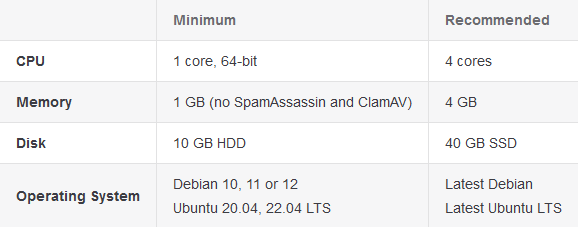
Requirements: Writing for example KVM - RS 2000 G12 1M Rabatt (netcup) Operating System: Debian 12 Bookworm - Minimal Install Processor: AMD EPYCβ„’ 9645 Processor cores: 8 dedicated RAM DDR 5 ECC: 16 GB Hard drive: 512 GB NVMe SSD Location: Europe Hestia URL: Getting Started Documentation | Generate Installation Script | WGET URL | List Of Installation Options

enter image description here


Note: Installer needs to be run as root. Also, Hestia must be installed on top of a fresh operating system installation to ensure proper functionality. If on a VPS/KVM, and there is already an admin account, either delete that default admin ID, or use --force to continue with the installation. See my custom installation script below for further details. Hestia only runs on AMD64 / x86_64 and ARM64 / aarch64 processors. It also requires a 64bit operating system! Hestia currently does not support i386 or ARM7-based processors.

Note: Never run a web or mail domain with the admin user.


Login

  • Login to your server via SSH/Terminal
  • Update your system apt update && apt upgrade -y

Download

  • cd /home
  • wget https://raw.githubusercontent.com/hestiacp/hestiacp/release/install/hst-install.sh

If the download fails due to an SSL validation error, please be sure you've installed the ca-certificate package on your system - you can do this with the following command:

  • apt-get update && apt-get install ca-certificates

Run this Installation Script

bash hst-install.sh --hostname 'examplepanel.domain.tld' --username 'admin' --email 'workingmail@domain.tld' --password 'strong&complexpasswordhere' --multiphp '8.2,8.3,8.4' --postgresql yes --sieve yes --webterminal yes --force

This command will force install Hestia in English with the following software:

  • Nginx Web Server
  • PHP-FPM Application Server
  • PostgreSQL & MariaDB
  • Database Server
  • IPtables Firewall + Fail2Ban Intrusion prevention software
  • VSFTPD FTP Server
  • Exim Mail Server
  • Dovecot POP3/IMAP Server
  • Sieve
  • ClamAV
  • API
  • Web Terminal
  • Port 8083

Once installed, you can start accessing your installation at: https://panelexample.domain.tld:8083 or http://your.public.ip.address:8083

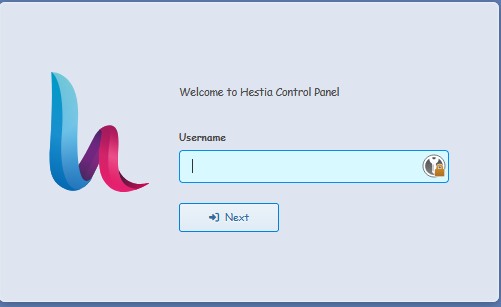
Login Page

enter image description here

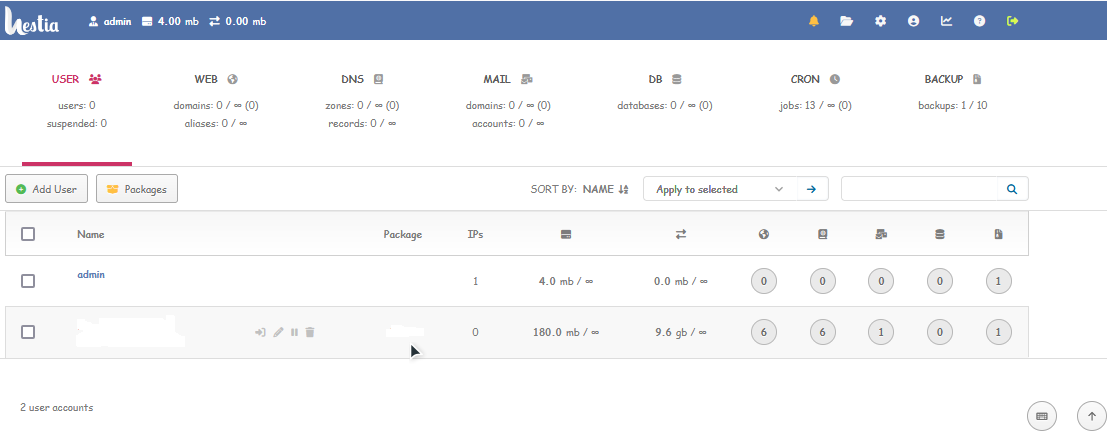
Control Panel Homepage

enter image description here

Enable two-factor authentication (2FA) for the admin user -- Documentation

Since the admin user has full control on the server, as well as elevated privileges, it is greatly recommended that you enable 2FA on this account. To access your account settings, click the user button in the top right.

  • In your account settings, check the box labeled Enable two-factor authentication.
  • Click the Save button in the top right.
  • Scan the QR code using an authentication app.
  • Save your Account Recovery Code somewhere safe, in case you lose access to your authenticator.

To secure your account further check out the following tutorial (applies to everyone using linux): Secure Linux Server

Linux - Find files having 0777 permission level!

- Posted in Linux/Unix by

A 0777 permission means -rwxrwxrwx for files & drwxrwxrwx for folders. Look it up here for more details.

Again, I will not try and go on about how security matters and how the incorrect file permission makes your Linux system vulnerable.

A file with permission 0777 is open to everyone for read and write. Any user logged in to system can write to this file. Which can be harmful for your system.

In some conditions you do require 0777 permissions, like log files. However, in most cases it is best to not have this.

The easiest way to locate all files having 0777 permission is:

find /path/to/dir -perm 777

The -perm command line parameter is used with the find command to search files based on permissions. You can use any permission instead of 777 to find files with that permission details only.

For example to search all files with permission 0777 under the logged in user home directory, type:

find $HOME -perm 777

The above command will search all the files & directories with permission 777 under the specified directory.

But if you don’t want to include directories in this list. Define the type with -type in command line parameter as below.

This will search only files with permission 777 under the /var/www directory.

find /var/www -perm 777 -type f

To search for directories only, type:

find /var/www -perm 777 -type d